New Phoenix Connect Features:
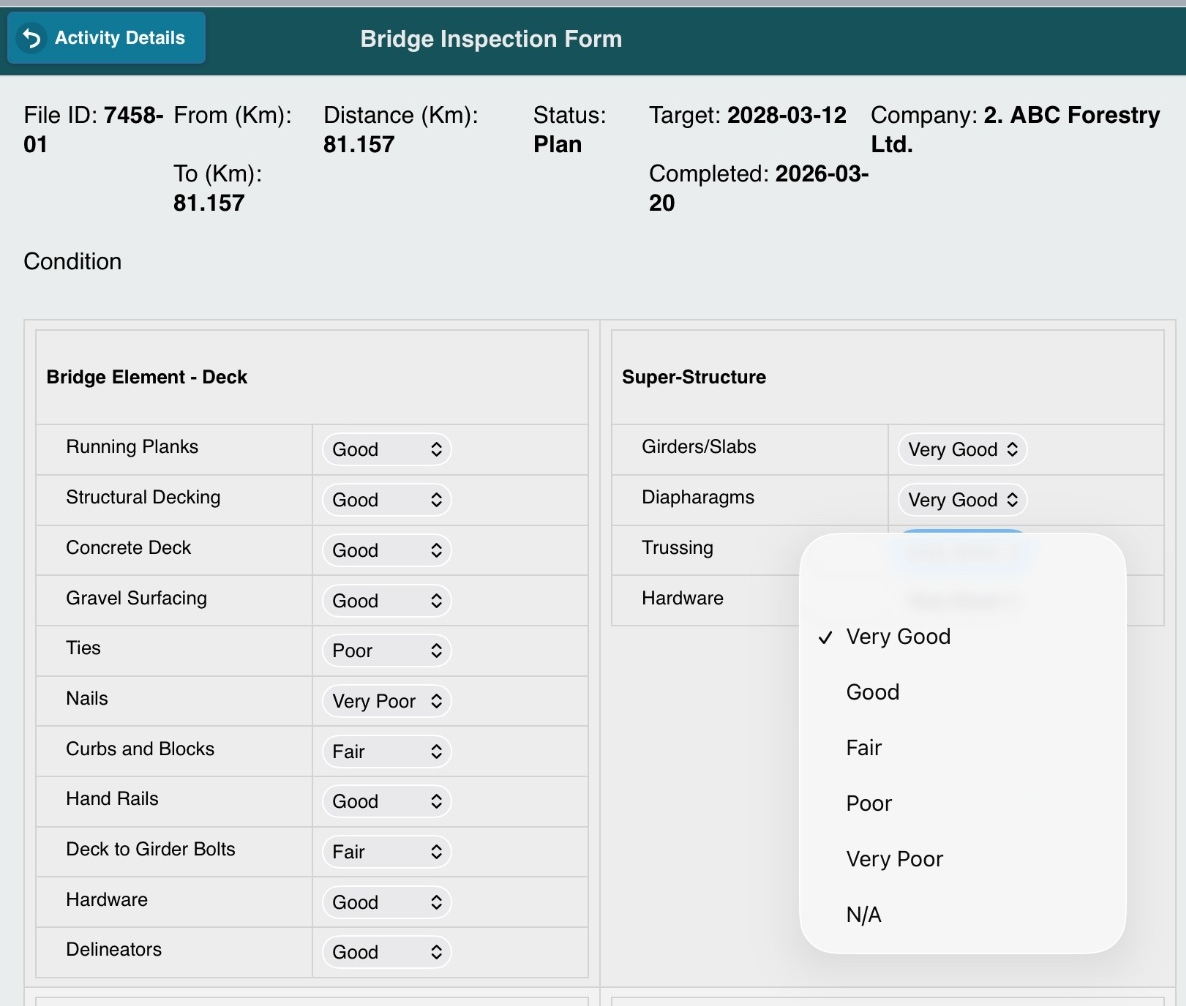
Road & Bridge Inspection Forms
We've introduced Forms for Road and Bridge Inspection Activities in Phoenix Connect, making it easier to record inspection information directly in the Phoenix Connect mobile app.
Default forms include:
- Road inspections
- Bridge inspections
These forms were developed using government inspection templates and client feedback, and can be configured to match your company's workflows.
Key capabilities:
- Photo attachments with coordinates
- Offline field data collection
- Syncing data back into Phoenix Connect
- PDF report exports
Additional forms can also be configured for any activity within the Roads and Openings modules based on your company's needs. Our team can work with you to configure forms that fit your workflows.
👉 Read the full article to learn more about Road & Bridge Inspection Forms in Phoenix Connect.
Plot Tool - Map Tab
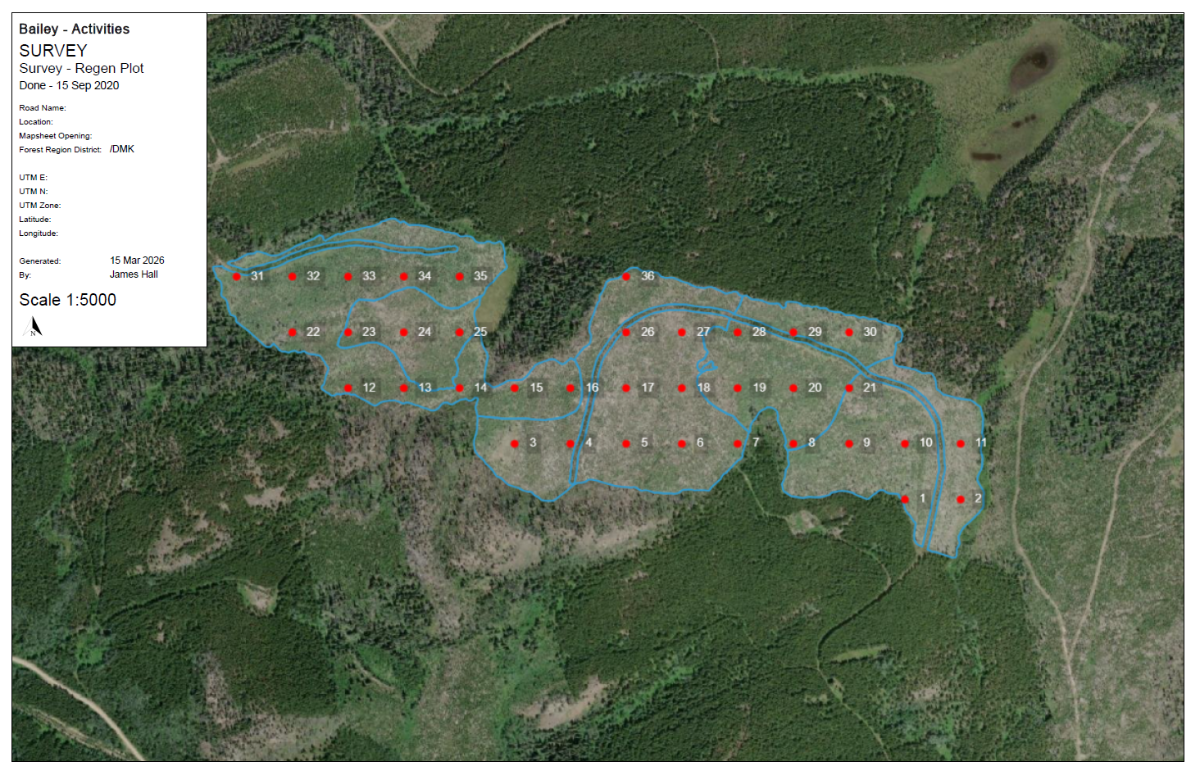
We've introduced a new Plot Tool within the Mapping tab in Phoenix Connect, making it easier to create and manage gridded plots directly within your project.
Default functionality includes:
-
Gridded plot creation
-
Custom grid spacing
-
Automatic plot numbering
-
Optional plot number visibility
-
PDF map export
Built to support real forestry workflows, the Plot Tool helps ensure consistency and efficiency when setting up field sampling layouts.
Common use cases:
-
Silviculture Block Maps for
-
Pay plots
-
Plantability surveys
-
Forest health surveys
-
And more
The Plot Tool provides a simple, reliable way to design and manage plots for a wide range of forestry field data collection needs-all within Phoenix Connect.
Contact us if there are additional/new uses for these tools!

Use Case: Track Road Issues in the Field
Notice a problem while driving a road-like a washout, drainage issue, or damaged culvert during your inspection?
With the Phoenix Connect Mobile App, you can log the issue immediately while you're in the field. Simply add notes, attach a photo, and continue your work.
When you sync back at the office, the issue is saved and mapped in Phoenix Connect, allowing it to be tracked and planned for maintenance.
No more lost notes or forgotten observations-everything stays organized in one place.
Tip of the Season: Take Photos in the Field ➜ View on Map Tab
Photos are one of the easiest ways to capture important field observations.
Using the mobile app, you can take photos of:
- Culverts and drainage structures
- Road conditions
- Bridge infrastructure
- Block observations such as CMTs
When synced, photos are attached to the activity and can be viewed directly on the map in Phoenix Connect, making it easy for your team to see exactly what was observed and where.

Industry Update: RESULTS Spatial Reporting
Over the past year, the Province introduced RESULTS reporting updates as Best Management Practices (BMPs) to improve data quality and spatial accuracy. The most recent clarification document was released in August 2025.
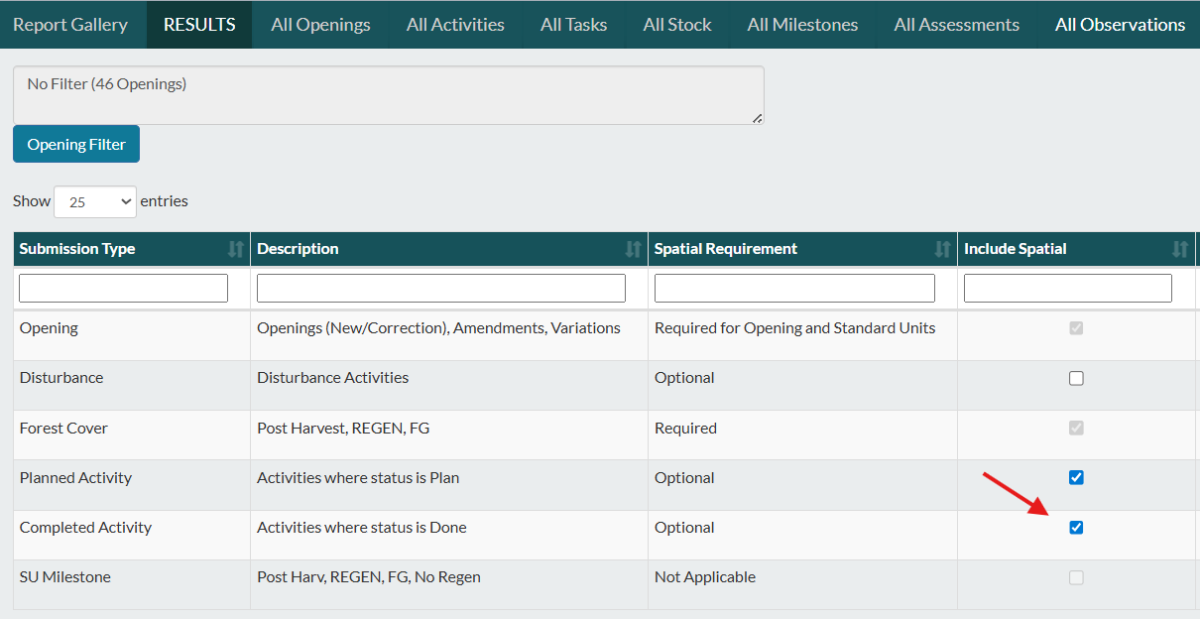
One key change to be aware of is that spatial data is now expected for Activity Report submissions for all new silviculture activities with specific base codes identified in the update document.
For Phoenix Connect users, this means ensuring spatial data is included when generating your XML submission.
Before submitting, it's a good practice to:
- Confirm the activity has spatial mapped
- Verify the correct base code is used
- Ensure you have checked off "Include Spatial" before creating the XML (as shown below)

Contact Us
#11 - 321 Wesley Street
Nanaimo, BC, Canada, V9R 2T5
x 250-591-4433 A info@drsystemsinc.com
